Manage ward stock - stock ordering
Print Article
- From the Dashboard click on Stock.
- Click on Orders.
- Click on one of the three options.

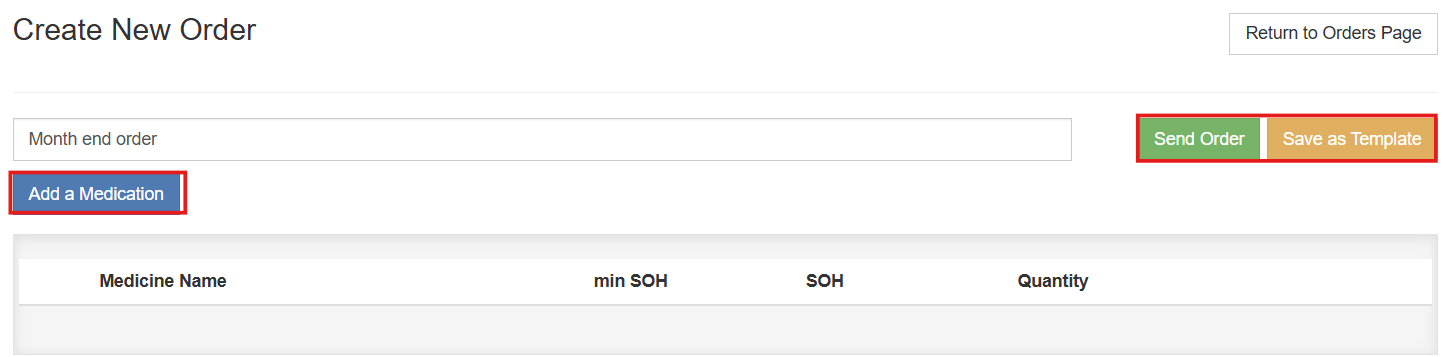
- Create New Order - name the order, add medications to a list, add the quantity required and send to the pharmacy.

- Add a Medication to the template and click Send Order or Save as Template.
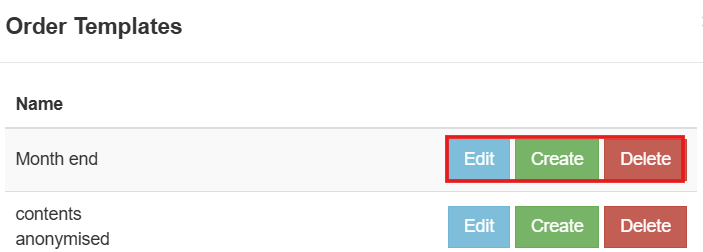
- Click to edit or delete an existing template or create a new order template.
- Edit - add medications to an existing template or delete meds, create or create an order from this template.
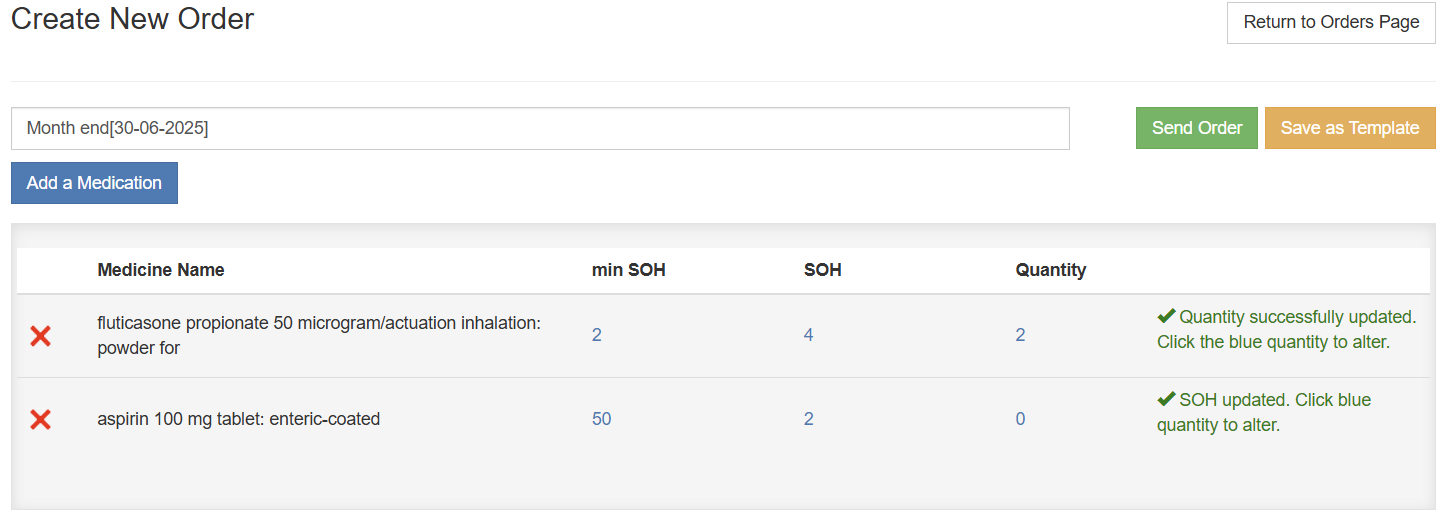
- Create - add meds, delete meds, enter the min stock on hand (SOH), SOH and quantity, there is an option to send the order or save as a template.
- Delete - will permanently remove the template.
- When Create is selected the below window will open:
- Enter the min SOH, SOH and Quantity,
- Add a Medication - to open the Medication List,
- Send Order or Save as Template - click once you have completed the stocktake to Save Stocktake or Save and Create Order.
- Orders to Check In will display the status of the orders.
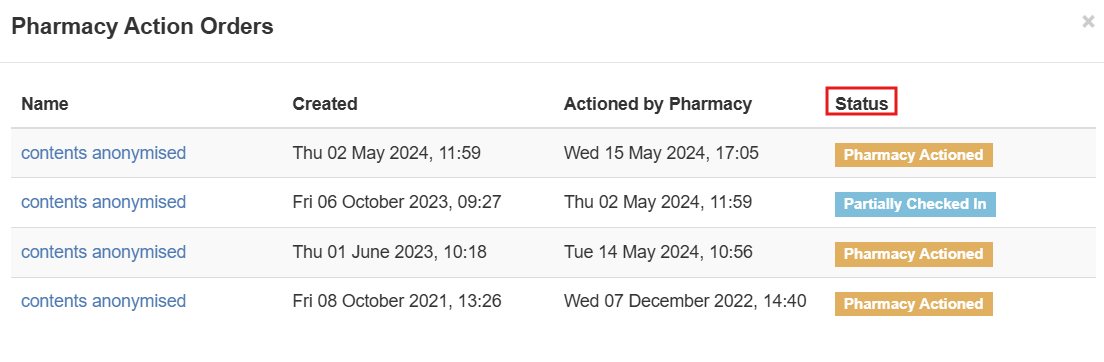
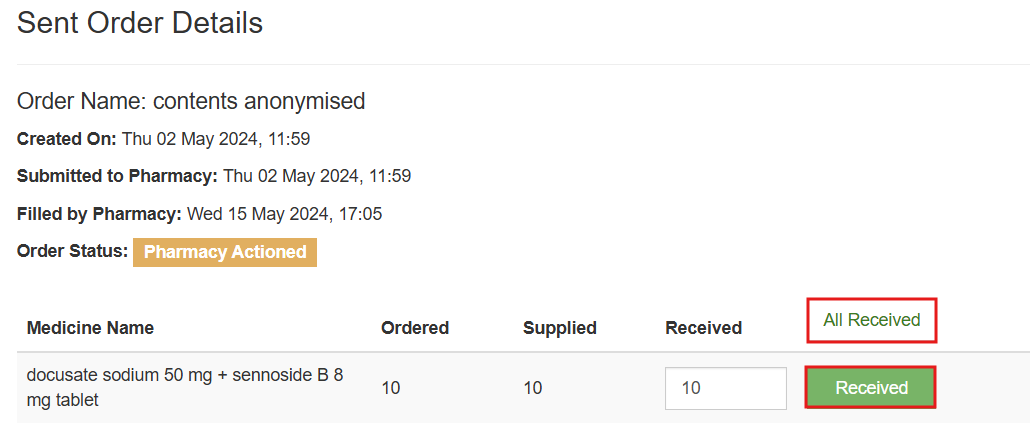
- Click on the blue name to open the Sent Order Details window where you can click on Received for one item or All Received for the whole order.